What are Equipment Slots?
Equipment slots are how we define where we want our equipment to go when it is equipped on our pawn. Equipment slots are an enumeration, E_EquipmentSlots. When we are setting up our equipment in the DT_Equipment data table one of our fields is this enumeration. When the equipment system communicates with our pawn to get the socket and mesh component it uses this enumeration as a reference.
Linking Equipment Slots to Sockets on the Pawn
This is handled using the instructions found in the pawn setup chapter. In this chapter we discuss adding the BPI_EquipmentPawn to your pawn, and using the getEquipTarget to respond to the equipment system with your socket and mesh component based on the equipment slot. This is where the link between an equipment slot and the mesh socket is connected.
What are Equipment Slot Indexes?
You may have noticed the option to provide an equipment slot index in addition to the equipment slot. This integer is to make it easier for you to use multiple sockets on your pawn when working with equipment. For example if you wanted to switch hands for a specific weapon, you could provide a different EquipmentSlotIndex for this other slot you want to use when defining your equipment in the DT_Equipment data table. When you are setting up the pawn the functions related to equipment slots will include this equipment slot index.
In the demo world we use the equipment slot index for our main hand. By default it is set to 0, which will use the socket on our right hand. For our throwable grenade example we use an equipment slot index of 1, which we have set up to use a socket on our left hand. We also use index 2 for the temp mesh that is shown when we consume another socket on our left hand that has a reduced scale. We define the different sockets for each index in our BPI_EquipmentPawn blueprint interface function getEquipTarget.
Defining what goes in an Equipment Slot
We use our Specialty Slots system to define the requirements for what can be placed in the slots. Specialty Slots also have the option to override the Equipment Slot. This comes in handy when you want to have multiple slots of the same type, but have them associated with different sockets on your pawn.
In the included examples we use this override for our 2nd trinket slot. While both trinket specialty slots are configured to equip the same Item Type and Item Sub Types, and all trinket equipment is set up to the Trinket equipment Slot. The second trinket slot uses the override to set it to Trinket2. This lets us show the trinket in a different position on our pawn, since it will send Trinket2 for anything placed in this slot.
Equipment Profiles
We use Equipment Profiles as a shortcut to defining the set of specialty slots used for equipment on our pawns. Profiles are used by both the player, and when equipping NPCs. We define our equipment profiles in the DT_SlotsProfile data table in the Blueprints/Variables/DataTables/ folder. The row name is how we reference the profile when linking it to the player or NPC, and the Slots is an array of the specialty slot row names.
For our player we can set what profile we are using on the AC_InventorySystem component we attached to our pawn. See the Equipment configuration section, the EquipmentSlotsProfile is the variable where you will set the row name of the DT_SlotsProfile.
For equipment on NPCs, you will define the profile on the NPC component. See the Equipping NPCs to learn more about that.
Create a New Equipment Slot
- Add your Equipment Slot’s Name to the enumeration E_EquipmentSlot in the Blueprints/Variables/Enums/ folder.
- Setup your Specialty Slot and use the Item Type, Item Sub Type, or Gameplay Tags to define the criteria for your equipment slot.
In the examples we use Item Type and Item Sub Type, although I recommend considering using the Gameplay Tags instead. The only reason I didn’t use the gameplay tags in the example content is because they do not save when I package this asset for distribution on the Fab marketplace, as they are only available to include with a complete project, not an add to project asset.
- To show your equipment slot in the equipment window, add your new specialty slot to the equipment profile used by your pawn. If it is for your player you would use the
playerone by default.More information about using equipment profiles can be found in the previous section. - Set up your equipment slot in the getEquipTarget function added to your Pawn. This is where you associate the socket and/or mesh component to use for each equipment slot.
View the Pawn Setup page for full instructions on setting up the pawn.
At this point your equipment slot should be configured and ready for use.
How to get a reference to the Equipment Component
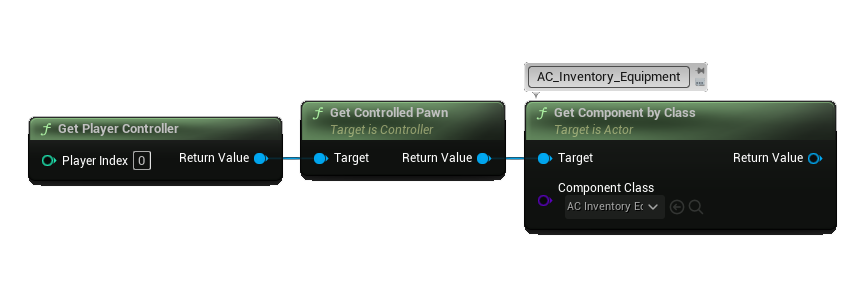
The AC_Inventory_Equipment is added to the pawn and to get the reference for the player's you would use the getComponentByClass function on the player controller's currently controlled pawn.
How to get Equipment currently equipped to a specific Equipment Slot
From a reference to the AC_Inventory_Equipment component you can call the getEquipmentInSlot function which will return whatever is currently equipped in a given Equipment Slot.
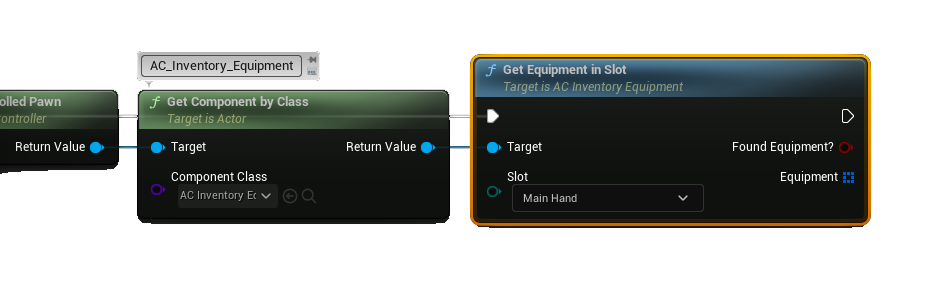
The boolean foundEquipment? will return true if equipment was found in the Slot you provided as an input.
The array will provide you with the storage component and slot id of each item equipped. From this you can do getItemInSlot to get specific details about the item that is equipped. Keep in mind multiple items can return (like multiple rings), which is why the result is an array. If you are only expecting one result you can use a Get node with an index of 0 to get the first (and only) result from this array.