The player inventory is the short term storage solution for items the player collects, crafts, and earns while out on their journey.
How the Player Inventory Works
The player’s inventory is built using an instance of our AC_Inventory_Storage component added to the Player Controller during the AC_InventorySystem component setup. The player interacts with this component using the UI_PlayerInventory widget found in the UIs/Storage/ folder.
Get a reference to the Player Inventory
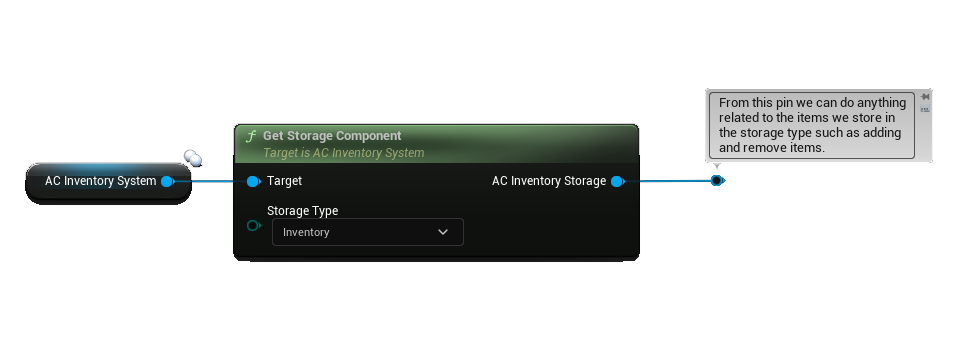
You can get a reference to the storage component for the player inventory through the AC_InventorySystem component you added to your player controller. From the AC_InventorySystem call the getPlayerStorage function and select Inventory for the Storage enumeration.
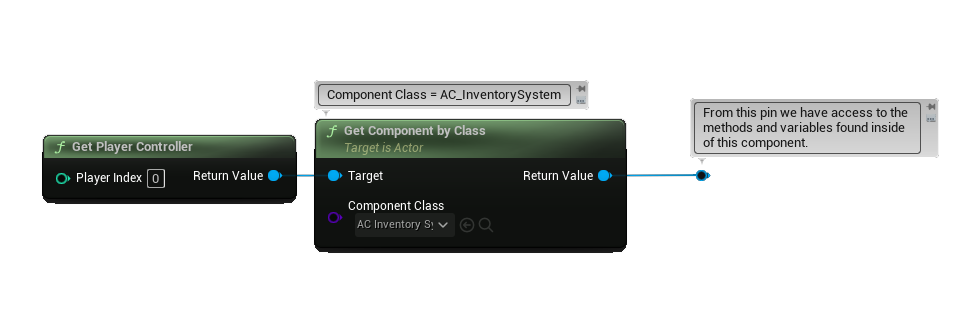
If you don’t have a reference to the AC_InventorySystem handy you can use the getComponentByClass on the player controller, then select the AC_InventorySystem component like this:
Add items to the Player Inventory
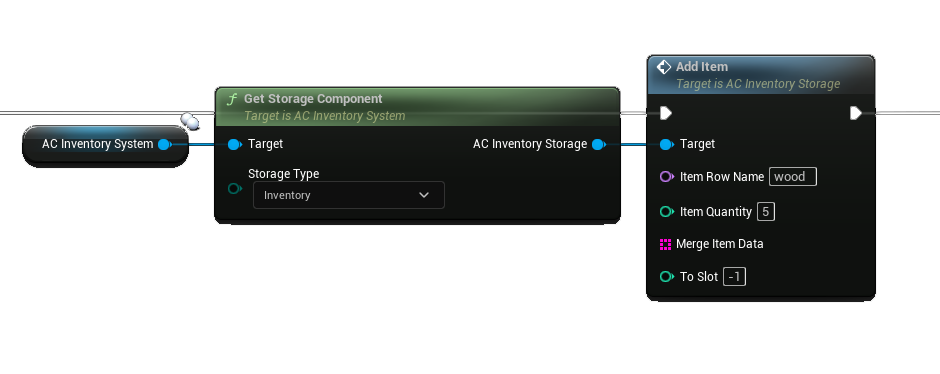
From the storage reference (see above) call the addItem function. Here is a breakdown of the input variables:
ItemRowName - The row name as it appears for the item in the DT_Items data table.
ItemQuantity - The number, or quantity, of this item to add on this call to addItems.
MergeItemData - Part of the Dynamic Data system (this is for an advanced feature that you should check out later).
ToSlot - The slot number in the storage component to add the item to. By default it is set to -1 and leaving it as -1 will select the best slot for us, filling out lower numbered slots first.
Here is what it looks to add 5 pieces of our wood to the player’s inventory:
Remove Items from the Player Inventory
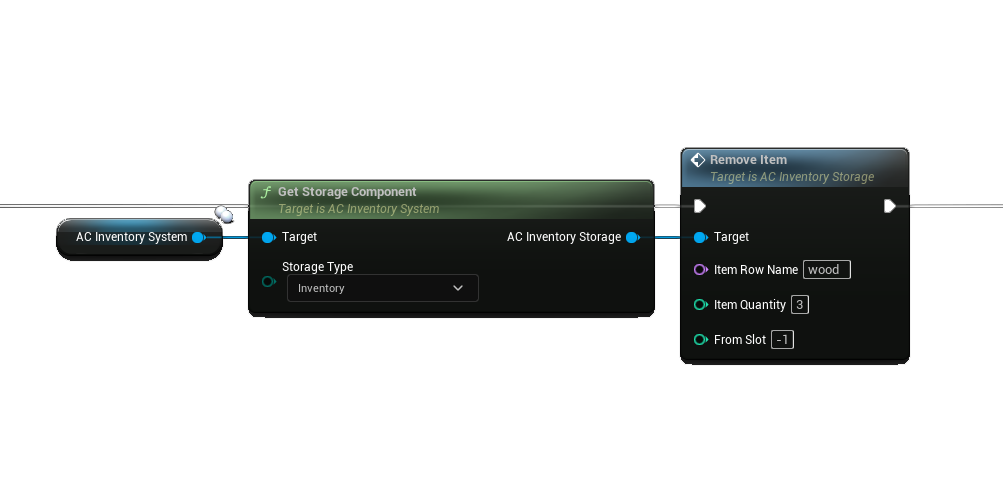
To remove items from the player inventory we first get a reference to your player inventory as described a few sections above on this page. From this reference we can call the removeItem function. As inputs you will provide the following:
ItemRowName - The row name as it appears for the item in the DT_Items data table.
ItemQuantity - The number, or quantity, of this item to remove on this call to removeItems.
FromSlot - The slot number in the storage component to remove the item from. By default it is set to -1 and leaving it as -1 will select the best slot for us, removing from lower numbered slots first.
Here is what it looks like to remove 3 pieces of our wood from the player’s inventory:
Changing the slot count on the player inventory
For the player we change the default number of slots for the player inventory using the inventorySlots variable on the Inventory Configuration section of the AC_InventorySystem component you added to your player controller.
Setting up Starter Items for Player Inventory
For the player we define the starter items added to the player inventory using the inventoryStarterItems variable on the Inventory Configuration section of the AC_InventorySystem component you added to your player controller.
If you would like to randomize starter items with chance you can find variables to optionally define a loot table (and the roll method) to use for generating starter items in the same location.
To learn more about these variables see the Starter Items chapter.
Setting up Buyable Slots on Player Inventory
For the player we set up the Buyable Slots for the player inventory using the InventorySlotCountBuyable and InventorySlotCountBuyableRequirements variables on the Inventory Configuration section of the AC_InventorySystem component you added to your player controller.
To learn more about these variables see the Buyable Slots chapter.
Setting up Specialty Slots on the Player Inventory
For the player we set up the Specialty Slots associated with the player inventory using the inventorySpecialSlots variable on the Inventory Configuration section of the AC_InventorySystem component you added to your player controller.
To learn more about setting up and using specialty slots see the Specialty Slots chapter.
Customizing the Inventory Window
For the player inventory you can customize the Window Title Text, Icon, Open and Close Sounds using the variables on the Configure / Inventory / Inventory Window section of the AC_InventorySystem component you added to your player controller.
View the Sounds chapter to learn how to customize the other sounds.
Hide and Show the Player Inventory
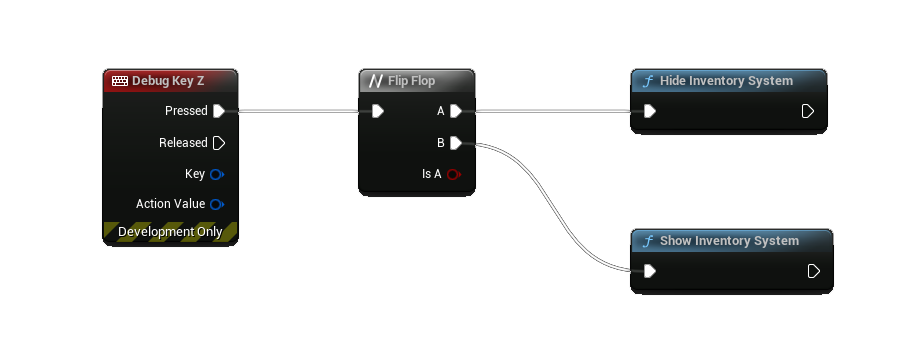
You can globally call hideInventorySystem and showInventorySystem from anywhere to toggle the entire system and all of its parts, including the player inventory.
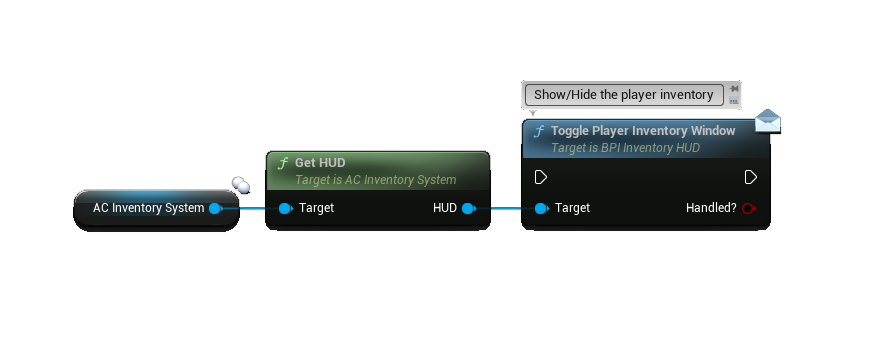
If you would like to just toggle the player inventory you can call the togglePlayerInventoryWindow message on the UI_InventorySystemHUD. You can get a reference for this HUD from the AC_InventorySystem component by calling the getHUD function.
For keyboard and mouse if you are looking for the input mapping contexts used to toggle the player inventory see the IMC_InventoryV4_KBM input mapping context found in the Blueprints/Input/KeyboardMouse/ folder. For gamepad it is the IA_InventoryV4_GP input mapping context found in the Blueprints/Input/Gamepad/ folder. By default the [ I ] key on keyboard and the [Right Shoulder] button on the gamepad will open the player inventory window.
Unique Identification of Player for Saving
In multiplayer we can uniquely identify our players using the getUniqueIdentifier function implemented through the BPI_InventoryUniqueID blueprint interface. The return node of this function has a UniqueIdentifier string, and the Handled? boolean.
The UniqueIdentifier is your unique identifier for that player. You will need to come up with your unique identification using your own logic. For some people this will be a Steam ID, and for others it will be a custom implementation.
The Handled? boolean is used to indicate that you are using the function and responding with a valid value.
If Handled? is set to false, or if you don’t implement the blueprint interface the system will not use the unique identifier returned in the string, and will instead use the index of the player in the players array found in the game state. While this works out of the box, it is not a reliable way to handle unique identification for games that need to persist between sessions, and you should instead use the unique identifier string option instead.
Keep in mind this unique identifier is used for all storage components related to the player, this includes the Player’s Hotbar, Bank, and Equipment in addition to the Inventory.
Player Inventory Window Widget
You can find the UI widget for the player inventory in the UIs/Storage/ folder, it is the UI_PlayerInventory widget.
By default this widget is added manually to an instance of our draggable window in the UI_InventorySystemHUD. See the construct event to see how it connects to the player inventory.