What is Dynamic Data?
Dynamic data is how we store and manage variables specific to our item instance. This data can be changed, added, and removed at runtime.
For example, let's take a look at the flashlight blueprint from the included demo equipment content. When we use the flashlight the battery drains. When the battery runs out we shut it off and the player can't turn it back on.
To support this, we need a way to track the remaining battery power for the specific flashlight the player has equipped. Dynamic data makes this possible because it lives on the item instance itself. As the flashlight is used, we decrement the stored battery value. When it reaches zero, the flashlight turns off.
In this setup, the flashlight blueprint handles what happens when the battery is empty, while the dynamic data system provides the storage for the battery's current value.
Get Dynamic Data
Call getItemInSlot on the AC_Inventory_Storage component the item is stored in. Provide the Slot ID of the item and this function will return details about what is currently in the Slot, including the Dynamic Data as a map variable. Attach a find node to this map variable and enter your dynamic data key to find the current value for it. The data will be returned to you as a string, from there you can convert it to whatever type you need it as.
Dynamic Data Array and Map Helper Functions
In most cases you will be provided the dynamic data as a map variable, however in some instances you will come across Dynamic Data in a string array format, where each element in this array is structured like key:value. To make it easier to work with you can use the getDynamicDataMap global helper function to convert this array to an easier to use map variable.
You can also convert the map to an array, for when an array is requested as an input, using the getDynamicDataArray function.
The reason we store and use the array version is for ease of network transportation in multiplayer games, since we can't replicate map variables. These helper functions make it easier to switch back and forth between each form.
Add, Change & Remove Dynamic Data
setDataInSlot on the AC_Inventory_Storage component is the function we use if want to add, change or remove dynamic data at runtime. To use you will need to provide the following details.
Using this function and its inputs you can perform the following actions on this item's dynamic data:
Dynamic Data Defaults
Default dynamic data for an item is defined in the DT_Items data table, using the DynamicData map variable. You will have the opportunity to provide additional data when adding or spawning the item. This will let you override and append the item's default dynamic data.
Showing Dynamic Data on the Item Tooltips
Only dynamic data that you pick is shown on the tooltips, and you pick what is shown by inclusively adding your Dynamic Data Key to a list. You also define how the syntax is formatted for the value at the same time.
To Show and Customize the Syntax for the Value of a Dynamic Data Key
Navigate to, and add a row to the DT_DynamicDataDefinitions data table in the Blueprints/Variables/DataTables/DynamicData/ folder.
The Row Name you add to this table should match your Dynamic Data Key. The rest of the variables let you define how to display your value for this key. You will have the following fields to customize your syntax:
In-line text variables for showing the actual Value
If you are using the default Text fields mentioned above you can utilize the following text variables in your string. These variables will be replaced with the proper values when rendered.
These in-line variables are only designed to work with the three Text options for the definition. If you are using the custom handler you will be provided with all the related data, and will need to hand place your actual values in your custom strings, as there is no parser for custom handlers.
Showing Different Colored Text (RichText)
This version includes rich text formatting for the dynamic data text shown on the item tooltips. The font formatting options are defined in the DT_DynamicDataStyles data table in the Blueprints/Variables/DataTables/DynamicData/ folder. To help you get started there are 7 included styles and a default. The "default" row is required by the Rich Text system and is not one you should remove. The 7 styles I've included are:
| Row Name | Usage | Output |
| red | <red>my red text</> |
my red text |
| green | <green>my green text</> |
my green text |
| blue | <blue>my blue text</> |
my blue text |
| gray | <gray>my gray text</> |
my gray text |
| orange | <orange>my orange text</> |
my orange text |
| yellow | <yellow>my yellow text</> |
my yellow text |
| pink | <pink>my pink text</> |
my pink text |
It is important to note that you close all tags with </>. While it looks like HTML it really isn't, and you should not use the same keyword you used in the opener tag with the closing tag (it will not work). You also want to avoid embedding tags within other tags, as that does not work since it is a very simple parser. This is using Unreal's internal Rich Text system if you would like to learn more about the subject.
Also worth noting, you can change anything realted to the font for each row, not just the color. In the included examples gray is actually a slightly smaller font size then the others.
Showing hidden dynamic data using the debug mode in the Editor
While playing in the editor you can press the \ (backslash) key to toggle showing hidden dynamic data variables and values on the item tooltips. This will temporarily show you all the data on the item, for hidden variables it will show them on the tooltip like: (hidden) variable=value
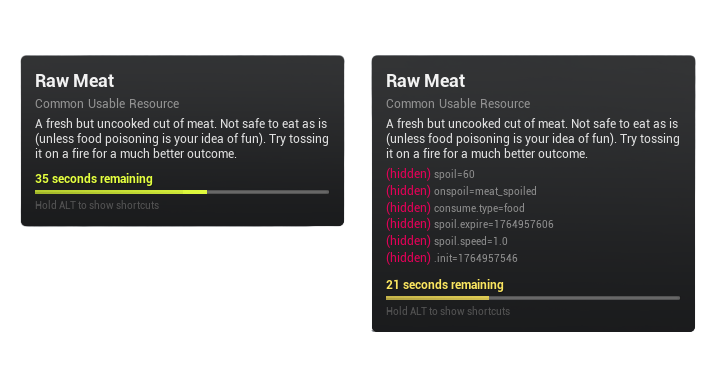
This is intended to help you debug dynamic data, as when you start using some of the advanced use cases (as described below) you will want a way to validate the data ending up on the item.
This feature is only available while playing in the editor and is intentionally disabled in packaged builds. Hidden data is data your player shouldn't need to see, but you as a developer might need to see it while working on your project.
Dynamic Data Helpers (for custom functionality)
Advanced Dynamic Data Helpers let us inject functionality into the system, to run at certain points, for specific items utilizing the Dynamic Data we are associated with.
In the previous version of this system we had Tap in Points which is the same idea, however the key difference is that in this version the handlers are only loaded when they are actually needed. In the last version they were always running, which was adding extra unncessary overhead. The goal was to decouple as much of the custom and unique logic from the base system.
The Spoilable Items system was specifically built to showcase the advanced functionality of this Dynamic Data System using these helpers. If you are interested in using this part of the dynamic data system I recommend that you check out that page of the docs even if you are not using spoilables in your game. It will give you a breakdown of how it utilizes dynamic data to handle expiring items.
Create an Advanced Dynamic Data Helper
- Navigate to, and open, DT_DynamicDataHelpers in the Blueprints/Variables/DataTables/DynamicData/ folder.
- Add a new row, setting the row name to an exact match of your Dynamic Data Key.
- Use the variables (details of each below) in the data table to define your custom helpers.
You can find the base class, BPO_DynamicDataStateEvent in the Blueprints/Objects/ folder. The included examples can be found in the DynamicDataStatEvents/ subfolder.
Create a child of BPO_DynamicDataStateEvent and link it to your Event in the data table.
Then within the helper you created, override the function related to the lifecycle hook (listed above).
You can use one helper to manage different lifecycle hooks, but just remember they are re constructed for each use, and the data you save within will not persist to the other events.
You also have the ability to provide additional custom data using the ExtraData array. If you are reusing a helper and need to send some customized data with the particular instance of it being triggered for the dynamic data key you can define it here. There is no parser included for extra data, you will need to handle that yourself on the inside.
Dynamic Data Included with the Asset
Below is a breakdown of the dynamic data points found throughout the system and examples. If you come across one that isn't described below please let me know.
| Dynamic Data Key | Purpose/Usage | Where it is Used |
| air.control | Used by the rocket backpack example to give the player more air control while they are launched in the air. | See AC_EquipmentHandler_RocketBackpack for use. |
| ammo | The item row name used as the ammo for the weapon. | See AC_EquipmentHandler_Simple_Range setupAmmo function. |
| ammo.clip | The current count of ammo in the weapon. | See the AC_EquipmentHandler_Simple_Range equipment handler's consumeAmmo, setupAmmo, and onDoneReloading functions. |
| ammo.clip.max | The max count of ammo that can go into the weapon. | See the AC_EquipmentHandler_Simple_Range equipment handler's consumeAmmo, setupAmmo, and onDoneReloading functions. |
| battery | The current value of the battery charge remaining on the flashlight equipment example. | See BP_Flashlight for use case. |
| battery.max | The max value of the battery charge on the flashlight equipment example. | See BP_Flashlight for use case. |
| charges | Part of the usable items system to limit the number of times an item can be used before it is destroyed. For example set it to 3 in the item's dynamic data and you can use that item 3 times before it is destroyed. If you set it to -1 it will be treated as unlimited charges. | See AC_UsableItemHandler removeItemFromStorage function. See the demo world dynamic data section for examples of charges. Also magazine_timmy2 is an example of unlimited uses. Added to the item's dynamic data in DT_Items. |
| consume.type | Used by the usable handler for consumable example items. Which passes the value to the pawn using the item using the ConsumedItem blueprint interface function. In the demo this is used to play different animations on our pawn depending on the item consumed. | See AC_UsableItemHandler_Consumable event graph. |
| cooking.grill | Same purpose and function as the cooking.pot, provided to show an example of multiple tools for both the workstation and the recipe. | See BP_Interactable_Workstation_Campfire / onToolExtras & onRegisterToolMeshes. Also found as a recipe workstation requirement (see meat_feast in DT_Recipes). Also used as criteria for specialty slots (see DT_SpecialtySlots). |
| cooking.level | Used as an example of a custom requirement for a crafting recipe. | See the demo world player controller's interfaced function checkCustomRequirement. Not currently defined in DT_Recipes but can be added to Custom Requiprement of any recipe. Intended as a starting point for a crafting skill level requirement implementation. |
| cooking.pot | Part of the campfire example. Used to see if the campfire has the cooking pot tool equipped, and if it does it shows the mesh for it on the campfire. Also used as a recipe requirement. | See BP_Interactable_Workstation_Campfire / onToolExtras & onRegisterToolMeshes. Also found as a recipe workstation requirement (see meat_feast in DT_Recipes). Also used as criteria for specialty slots (see DT_SpecialtySlots). |
| crafted.by | Used purely as a visual on the item tooltip to show who crafted the item. | A simple visual example of dyanmic data. Can be used as a starting point if you wish to tag items created by the crafting system by the player that created them. |
| crafting.speed | Used as a crafting speed multiplier in workstations. | See getCraftingSpeedMultiplier inside BP_Interactable_Workstation. Defined in the DT_Items data table for the item giving the speed boost. See dynamic data in cooking_pot_exceptional. |
| crafting.yield | Used as a crafting yield (more of the result) multiplier in workstations. | See getCraftingYieldMultiplier inside BP_Interactable_Workstation. Defined in the DT_Items data table for the item giving the yield boost. See dynamic data in cooking_pot_exceptional. |
| damage | The amount of damage the equipment provides. | See AC_EquipmentHandler_Simple getDamage function. Also used in AC_EquipmentHandler_Simple_RangeAutomatic_Extra lineTraceShoot. Also used in AC_EquipmentHandler_Simple_Melee meleeDamage function. |
| damage.deviation | Applied to the value of dynamic data damage to create a range of damage. | See AC_EquipmentHandler_Simple getDamage function. |
| fuel.duration | Items with fuel.duration provide fuel to workstations. The value is the number of real life seconds it supplies. | See AC_Inventory_Workstation getFuelTotalRemaining, hasFuel? and refuel functions. Also used as criteria for specialty slots (see DT_SpecialtySlots). |
| inventory.slots | Used by the equipment system to expands slots of the player inventory while the item with the inventory.slots dynamic data is equipped. | See checkForInventoryExpansions inside the AC_Inventory_Equipment component. Uses the temp slots system. |
| loot.luck | Used by the usable item loot box example to override the luck modifier. The value is a float from 0 to 1. The higher the value the higher the "luck" of the roll. | See AC_UsableItemHandler_LootBox_LootTableData event graph. This handler is attached to the loot_box item in the DT_Items data table. One of the demo world loot boxes in the Dynamic Data section uses the loot.luck dynamic data as an override. Also view the BPO_Helpers rollLootTable function to see how the luck modifier is used. |
| loot.table | Used by the usable item loot box example to override the loot table used. The value is the row name of the loot table in the DT_LootTables data table. | See AC_UsableItemHandler_LootBox_LootTableData event graph. This handler is attached to the loot_box item in the DT_Items data table. This item also has the loot.table dynamic data set to "meat" so it uses the meat loot table when used. |
| onspoil | Optionally used by the spoil item system. Value defines the item that is spawned when the base item spoils. | See BPO_DDSE_Spoilables (dynamic data state events) onPing and onTransfer functions. |
| player.level | Used as an example of a custom requirement for a crafting recipe. | See the demo world player controller's interfaced function checkCustomRequirement. Defined in DT_Recipes as a Custom Requiprement (see vial_fire Requirements.CustomRequirements in DT_Recipes). |
| random.rotate | Used to apply a random rotation to the pickup item's mesh when it exists in the world. No value needed. | See BP_Interactable_ItemPickup buildItem function. See the gold_ore item in DT_Items for an example item using this. |
| random.scale | Used to apply a random scale within a range (format: 0.5,1.2) to the pickup item's mesh when it exists in the world. | See BP_Interactable_ItemPickup buildItem function. See the gold_ore item in DT_Items for an example item using this. |
| range | Used by the equipment handler simple range automatic (extras) handler to provide the max range of the line trace. | onSetupAmmo inside AC_EquipmentHandler_Simple_RangeAutomatic_Extra is where the dynamic data value is set to a float variable, which itself is used in the lineTraceShoot function. |
| recipe | Used by the recipe unlocker usable item handler to define the row name of the recipe to unlock for the player. | See AC_UsableItemHandler_RecipeUnlocker eventGraph and checkConditions function. |
| spoil | Used by the spoil item system. Value defines the number of seconds it takes for the item to spoil. | See BPO_DDSE_Spoilables (dynamic data state events) onPing and onTransfer functions. |
| spoil.expire | The UTC Unix Timestamp of when the item will expire. | See BPO_DDSE_Spoilables (dynamic data state events) onPing and onTransfer functions. Set automatically and does not need to be defined in the item data table. Calculated within the getNextExpireTime function. |
| spoil.speed | The speed at which the spoilable item decays. By default is 1. Fractional values result in faster. Higher then 1 equals slower. | See BPO_DDSE_Spoilables (dynamic data state events) onPing and onTransfer functions. Set automatically and does not need to be defined in the item data table. Defined through the interfaced getSpoilSpeedMultiplier function called on the storage holding the items' owner. See Rapid spoiler and freezer blueprints for an example of the owner setting the speed. |
| .init | Used as an internal indicator to see if the item's dynamic data state event first load method has already ran. If it has not then the onFirstLoad event is ran and this data value is set. If it already exists then onTransfer is triggered. First load is per item instance stack. | See BPO_DynamicDataStateEvent checkIfAlreadyLoaded and markAsLoaded functions. |
Dynamic Data Limitations
— Dynamic Data lives on the instance of the item, so if you modify the dynamic data in the data table all current items that already exist in your world will not get that update. You will need to remove the old and spawn new ones. Dropping the item and picking it back up at runtime does not count.
— Keys and values are stored as strings.
— Dynamic Data on stackable items will override data when merged together. The stack is not keeping track of each individual item in it, but rather shares the data with all in the stack.