By default this system is designed to save automatically whenever a savable action occurs, specifically when data in one of the asset’s system components has changed. With a flip of a setting you can change this to something you manually control for storage if you prefer, and I’ll explain exactly how to do that later in this chapter, but first let’s talk about what we are saving and where …
Save Game Objects
This system uses the default Unreal Engine Save Game Object framework to save and load data dynamically at runtime. There are five different save game objects in this asset, you can find them all in the Blueprints/Variables/SaveGames/ folder. Here is a breakdown of each:
SGO_InventoryStorage - The storage component. For each instance of the AC_Inventory_Storage component. We track the items stored in the storage component and the number of slots expanded through the buyable slots system. For each player there will be a save game for each of the components used. For the player that would be inventory, hotbar, bank, and equipment. Storage containers and workstations also use these components, and thus have their own save games.
SGO_InventoryCrafting - We use this save game to track unlocked recipes, crafting queues, and current seconds remaining for the current craft. The player will have one of these if player crafting is enabled. Each workstation will also have one of these.
SGO_InventoryCurrency - We use this save game to track the player’s current currency values, as well as what currency they are using as their default tracked currency (the currency shown on the inventory).
SGO_InventoryVendor - We use this save game to track the buyable items stock and restocking of items. This is only used by vendor actors and is not associated with a player.
SGO_InventoryWorkstation - We use this save game to track the remaining fuel in the workstation from the last consumed fuel item.
Unless disabled Loading occurs on begin play and saving occurs whenever a change occurs. You can learn how to disable this and manually control saving below.
Manually Saving and Loading Storage
Since we save and load automatically by default you will first want to disable that on the player. On the AC_InventorySystem component attached to your player controller set autoLoadStorageOnSetup and autoSaveStorageOnChange to false. These will stop the system from saving and loading automatically, and will leave you with the responsibility to manually control the process.
For storage containers and workstations in the world you will want to set the related booleans on the storage component directly on the actor.
You control the process using the AC_Inventory_GameStateHelper component. This component has events and variables related to global saving. This component is added automatically to your game state by the first player controller to connect that also detects that the component does not already exist on the game state.
This component provides us with a place to store global variables, and events. For saving we use this for our global saving and loading events. These events are not called by the system but are here for you to use if you need an easy way to manually control saving and loading of everything related to this inventory system asset.
Manual loading works for all components, however manual saving is only available for the storage components.
-
To manually load storage, get a reference to this component on your game state and call loadInventorySystem. Provide your unique save game identifier as the global save game prefix input.
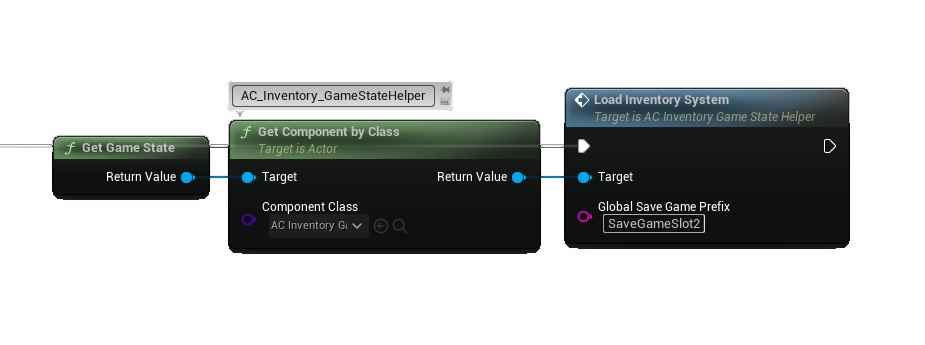 When manually loading from BeginPlay it is important that you wait for the system to finish initializing before calling this function. There are a few ways to handle this, the simplest being prefixing this call with a delay of one second.
 -
To manually save storage, get a reference to this component on your game state and call saveInventorySystem.
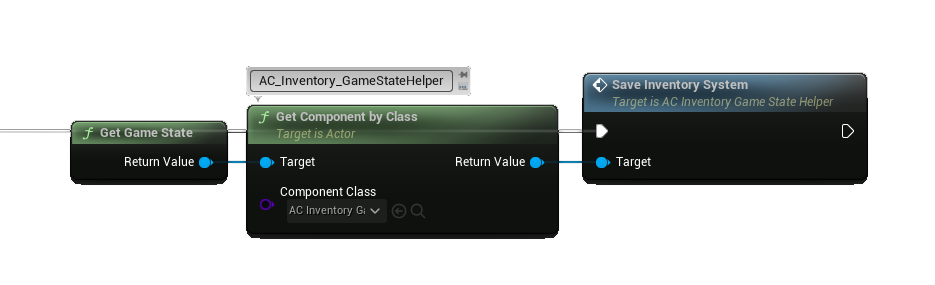
This GlobalSaveGamePrefix is used when building the save game slot names for the different systems. This variable is what you want to provide a unique value to for each of your unique games.
The asset and its systems will handle the rest. Whenever a component initializes it waits for the game state component which is added by the first player controller to connect to your game. When the game state component is ready, any system component that utilizes saving will bind into the event dispatchers to be notified of save and load requests. When those are called the components will handle the requests internally.
In multiplayer you only need to call these events once from the server, every one and every thing connected will automatically be included and get the notice.
For Everything Else
For all other components like crafting, vendor, and currency saving is still handled automatically. If you want to disable this to also control them manually you will need to remove the calls to save inside the components. To find out where right click on the function from the list and find references to the function. Remove all manual calls, and leave the ones driven by the game state component event dispatchers.
In a future minor version release I will offer integrated manual controls for these sub systems.
Unique Identification
We include a unique identifier in the slot name of our save games to identify specific players and actors.
For uniquely identifying players see the Multiplayer chapter.
For actors like storage containers, workstations and vendors we use the BPI_InventoryUniqueID blueprint interface, and respond to the getUniqueIdentifier function.
Each of the actors will have a string variable you can set for the unique identifier, and each will respond to this function with the value of that variable. For these actors I’ve also included a checkbox to auto generate the unique id of the actor but keep in mind this is only a solution if all of your actors will be loaded in the world at the same time. If they are not, then you will need to handle setting and managing the unique ids using your own method.
Uniquely identifying and persisting that identification between sessions is beyond the scope of this project, and most people will use some kind of world manager to track and handle the unique id for other actors. You will need to handle getting this value on your side, and then use what I’ve provided to feed that information into my system, so it knows what unique ID to use.
To get a better understanding of how this value is used see the buildSlotName function in the component doing the saving.