Working in Blueprint Video
Who this page is for ...
This page is intended for those that are just getting started or still learning how to work with blueprint and actor components. I recommend going through each section in order, and by the time you get to the bottom of this page you will know how to add and remove items as well as get details like quantity and dynamic data from the player’s inventory, hotbar, bank, and equipment.
Get all info for an Item
You can call the getItem function from any blueprint to get the data you entered in the DT_Items data table for the item.
On this function you will provide the ItemRowName, as it appears in the DT_Items data table for your item.
For example here is how we get our wood item info:
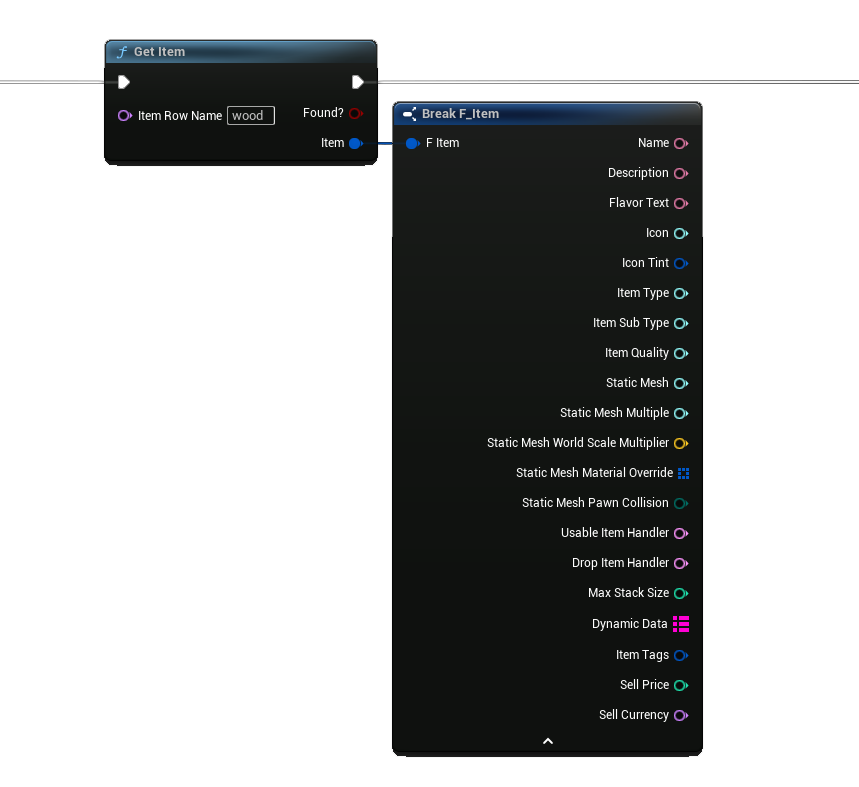
This getItem function provides a Found? Boolean, which will return true if the item is real and found in the data table, and false if it is not.
If it is true the values of the provided Item structure will contain all the details about your item.
As mentioned above, this data is coming straight from what you manually entered in to the DT_Items data table.
While it is not needed, it is a good practice to use the Found? variable as a validation step before proceeding with using the data from Item.
If the item was not found the values in the item data will be set to the defaults for the F_Item structure, which will be empty for a lot of them; and if you are getting this empty data check the row name you entered on the getItem function to make sure it matches exactly as it appears in the DT_Items data table.
Limitations
You should be able to call this getItem function from almost everywhere. There are however a few locations where you won't be able to and in these areas you will want to interface directly with the data table DT_Items to get this item information. This getItem function is just a shortcut for using the Get Data Table Row method.
You can also use the getItem function found inside the AC_InventorySystem component if you have a reference to it.
Get Inventory System Component
The inventory system component AC_InventorySystem is the main player component that connects us to all the other player specific components. We add this component to our player controller to set up our system. From it we can connect to our player storages, and other subsystems. We also access our HUD and widgets through this component.
To get a reference to the AC_InventorySystem component you first need a reference to your player controller component. Drag from this player controller pin and select getComponentByClass. From this node select the AC_InventorySystem. The return value on this node is a reference to the inventory system component instance we added to our player controller.
Here is how to get our inventory system component on our player controller:
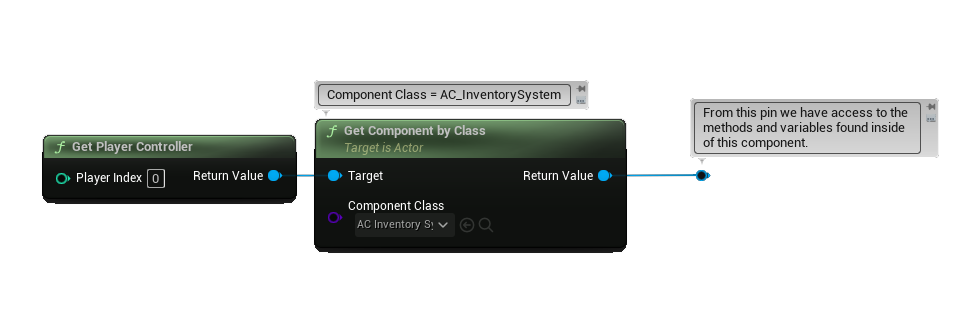
For multiplayer games it is crucial to make sure you are using the correct player controller for the player. If you are new to multiplayer I recommend taking some time to read through the Multiplayer Network Compendium by Cedric Neukirchen a few times. This guide helped me out when I was just getting started and is still a great resource for learning.
Get Player Storage Component
We can access the references for the storage components used for the player’s inventory, hotbar, bank and equipment using the getStorageComponent function on our AC_InventorySystem component. Since we want the player’s inventory we select Inventory for the Storage Type. We can also use this same node to get the storage component for the player’s Hotbar, Bank, Equipment, and even a remote storage (like a container or workstation) we are currently accessing.
Here is what it looks like in blueprint to get our player’s inventory storage component:
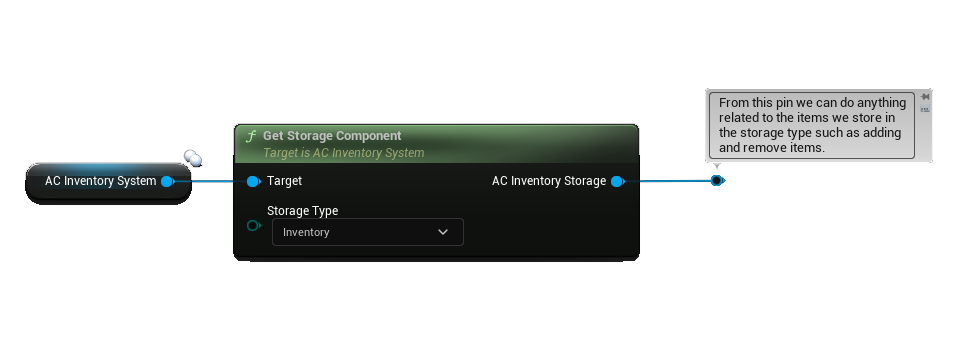
In this example we are in the player controller blueprint where we have a direct reference to our AC_InventorySystem and the variable we are using in this screenshot. We can create this variable by dragging the component from our components panel and dropping it here in the graph.
If you are working from another blueprint view the Get Inventory System component section (above) in this chapter to learn how to get the proper reference.
The information above will help you get the player’s storage components and to get the storage component from a non-player actor like our container blueprint you would use a reference to that actor and call the getComponentByClass function, and from the Component Class list select the AC_Inventory_Storage class.
Add Items to the Player Inventory
To add an item to the player inventory first get a reference to your player inventory as described in the previous section on this page. From this reference we call the addItem function. As inputs you will provide the following:
ItemRowName - The row name as it appears for the item in the DT_Items data table.
ItemQuantity - The number, or quantity, of this item to add on this call to addItems.
MergeItemData - Part of the Dynamic Data system (this is for an advanced feature that you should check out later).
ToSlot - The slot number in the storage component to add the item to. By default it is set to -1 and leaving it as -1 will select the best slot for us, filling out lower numbered slots first.
Here is what it looks to add 5 pieces of our wood to the player’s inventory:
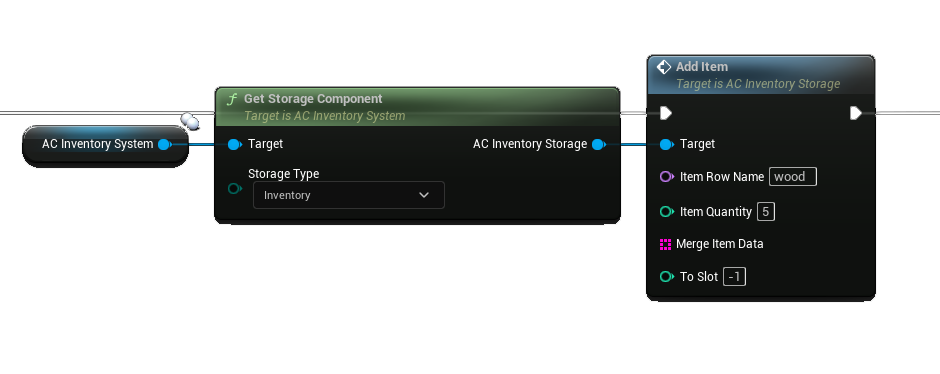
If you jumped to this section you can learn how to get the AC_InventorySystem variable and access the getStorageComponent function in the sections above this one.
Remove Items from the Player Inventory
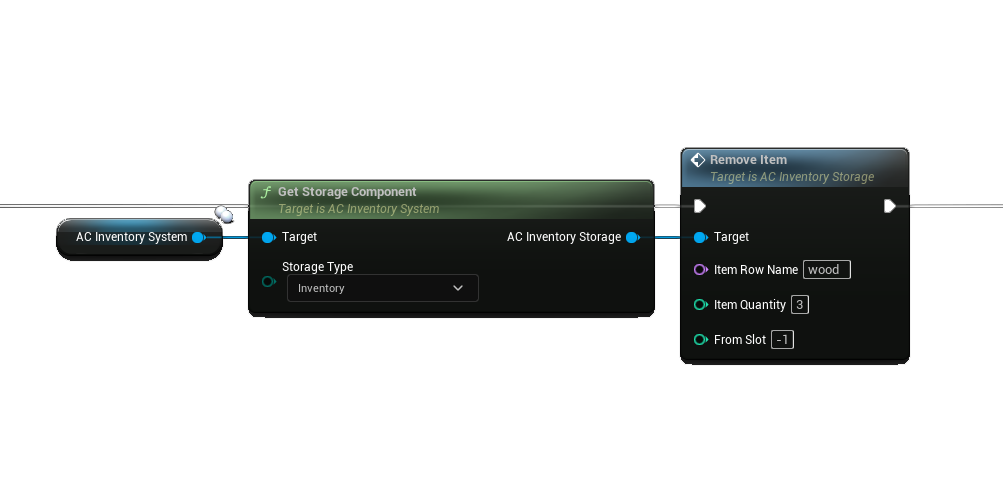
To remove items from the player inventory we first get a reference to your player inventory as described a few sections above on this page. From this reference we can call the removeItem function. As inputs you will provide the following:
ItemRowName - The row name as it appears for the item in the DT_Items data table.
ItemQuantity - The number, or quantity, of this item to remove on this call to removeItems.
FromSlot - The slot number in the storage component to remove the item from. By default it is set to -1 and leaving it as -1 will select the best slot for us, removing from lower numbered slots first.
Here is what it looks like to remove 3 pieces of our wood from the player’s inventory:
Get All Items in the Player Inventory
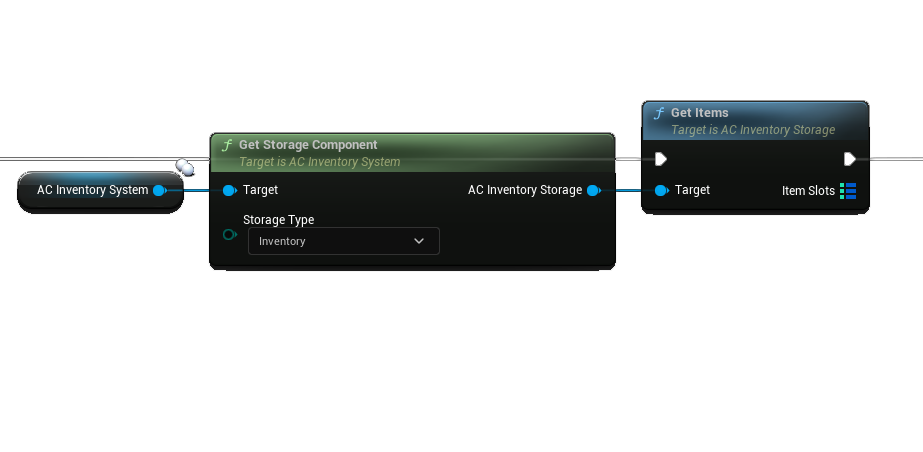
To get all items from the player inventory we first get a reference to the player inventory storage component as described a few sections above on this page. From this reference we can call the getItems (plural) function. As an output it will provide you with a map variable, where each key is the Slot #, and the value is a structure containing information about the item in that slot (the item row name, the quantity, and any dynamic data).
Here is what it looks like to get all items from the player’s inventory.
If you are new to map variables you can call the “Keys” function on a map variable and it will provide you with an array of the keys. From this array you can do a For Each loop, then using the value for the loop iteration you can use a “Find” function to get the data.
Here is what that would look like:
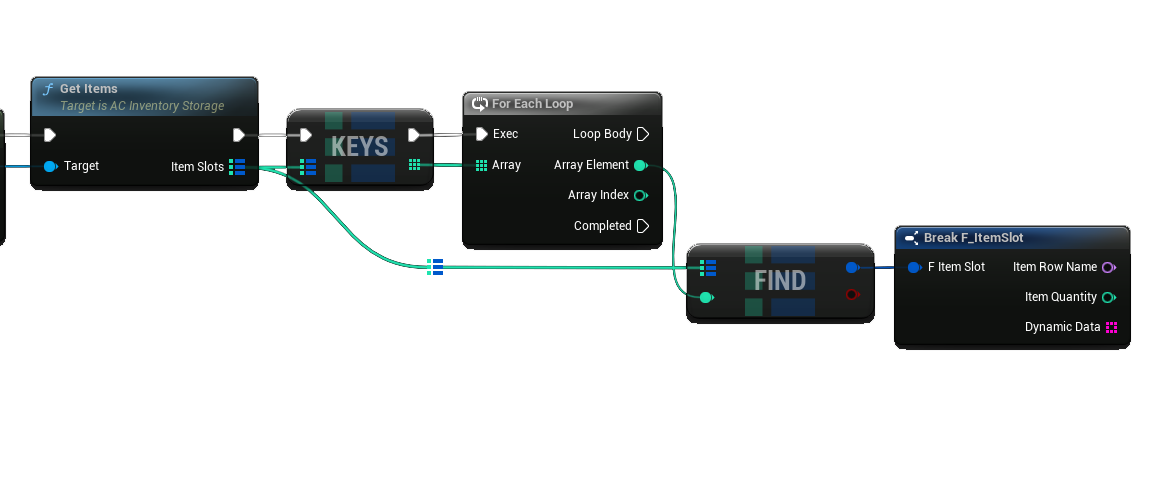
Using the ItemRowName you can call the getItem function mentioned previously on this page to get the specific item info.
Iterating through the loop will go through all the slots in the storage component that currently hold an item. Remember items are stored in slots in storage components, and that is what this integer is. It starts at 0 and ends at wherever you set the slots to (minus 1).
Keys and values in this map variable are only present if something is actually in the slot.
Get Item Quantity
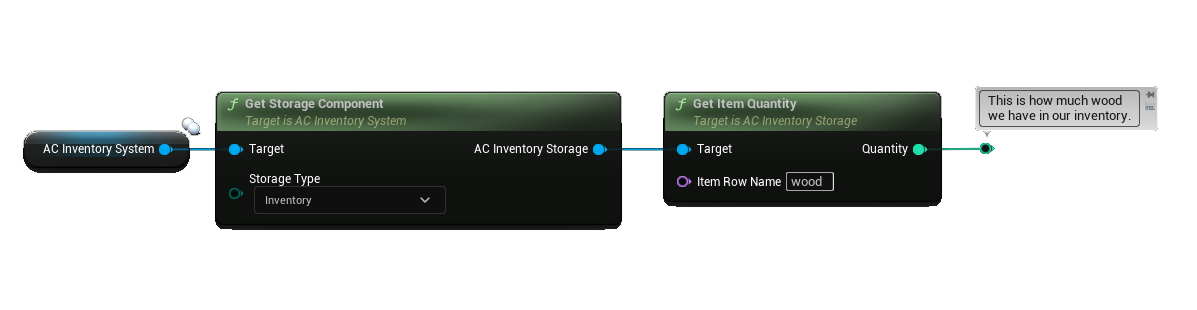
Getting the item quantity in a storage component is another common function, and to do that you call the getItemQuantity function on the storage component reference. You can learn how to get the storage component reference earlier in this chapter. As an input you would provide the ItemRowName of your item as it appears for the Row Name in the DT_Items data table. The output from this function will be the total quantity found in all slots in this storage component.
This example shows how to get the total quantity of wood in the player’s inventory:
Get Item in Slot
While working inside the various parts of this system you may find yourself with a reference to the StorageComponent, and a SlotID number but what you really need is the row name or dynamic data.
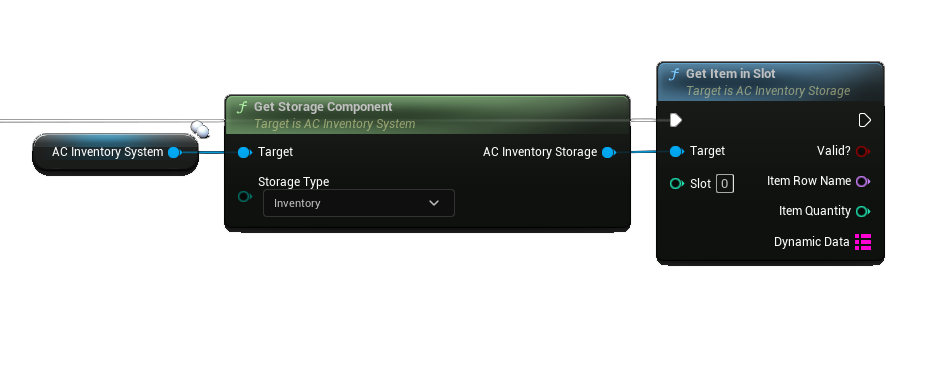
From this point you can use the StorageComponent reference and call the getItemInSlot function. As an input you provide the Slot number. In return this function will tell you if something was found in the slot, and if so it will provide the ItemRowName, the ItemQuantity, and the DynamicData.
Here is what it looks like to get the info for the item in the first slot (0) of our player’s inventory:
Summary
These code snippets are intended to help you get started using the system. There is a wide range of additional functions and variables found in each component throughout this system.
It is a good practice to open up these components and take a look at all the functions found in the “My Blueprint” panel. All the non-private functions are ones you can call from outside the component using syntax similar to the examples on this page. Each public function should have a description that describes the usage and purpose.
If you can’t figure out how to access something in the system feel free to reach out to me and I’ll help you. Make sure to include where in the code you are starting from, and any other relevant information.